At Reduce Refill Recycle, our mission is to promote sustainable printing practices that are both eco-friendly and cost-effective. Canon printers are renowned for their reliability and print quality, but the cost and waste of replacing ink cartridges can be significant. Refilling cartridges is an innovative, environmentally responsible alternative. In this guide, we’ll show you how to refill Canon cartridges, reset them, and disable ink tracking—all with sustainability in mind.
Why Refill Canon Ink Cartridges?
Refilling Canon ink cartridges saves money and significantly reduces plastic waste. Every time you refill instead of replace, you help divert plastic and electronic waste from landfills. Canon cartridges are designed with chips that track ink levels, but these chips don’t automatically reset when refilled. That’s where our guide comes in.
How to Refill Canon Ink Cartridges
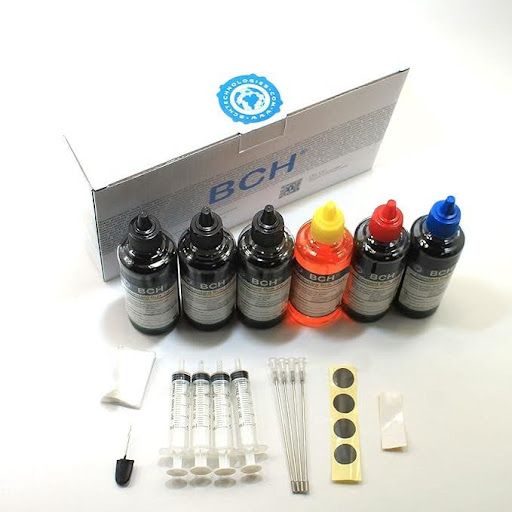
- Gather Your Supplies: Use a refill kit that matches your Canon cartridge model. These usually include ink bottles, syringes, and gloves.
- Prepare the Cartridge: Remove the cartridge and locate the refill holes. Some are hidden under the label.
- Inject the Ink: Slowly inject the correct amount of ink using the syringe. Avoid overfilling to prevent leaks.
- Seal and Clean: Seal the holes (if needed) and clean up any excess ink to ensure safe handling and reinsertion.
- Reinstall the Cartridge: Place the cartridge back into the printer. A reset may be needed to clear warnings.
Resetting Canon Ink Cartridges
Once refilled, Canon cartridges often still show a low ink warning. Resetting helps eliminate these errors:
- Press and Hold the Stop/Reset Button: Press and hold for 5+ seconds to disable ink monitoring with the printer on.
- Repeat for Other Cartridges: Follow the same process for each cartridge that’s been refilled.
Note: Reset instructions may vary by printer model—consult your manual as needed.
Disabling Ink Tracking
Ink tracking can lead to false low-ink messages after refilling. Disabling it supports smoother operation:
- Open Printer Settings: Access your printer’s maintenance or settings menu.
- Find Ink Level Monitoring: Look for ink level alerts or monitoring features.
- Turn It Off: Disabling this feature allows you to print without constant warnings.
Please monitor ink levels manually to avoid running out during essential prints.
Watch Our Step-by-Step Video Tutorial
We’ve created a full video tutorial that walks through refilling, resetting, and disabling tracking for Canon cartridges:
Watch the video to see how easy it is to print sustainably!
Conclusion
Refilling and reusing Canon printer cartridges is a powerful way to reduce your carbon footprint while saving money. At Reduce Refill Recycle, we believe in helping every household and business move toward a greener printing model. Adopting refill practices and disabling unnecessary tracking systems will help make printing more sustainable for everyone.
For more eco-friendly tips and tutorials, visit our blog and follow us on social media.
Disclaimer: Refilling and resetting cartridges may void your printer’s warranty. Proceed with care and consult your printer’s documentation.
Get More Printer Repair Tips
Subscribe to our free newsletter for weekly fixes, troubleshooting guides, and exclusive discounts on printer accessories and services.